Smart Shopping List · Deal-aware
A shopping list that
knows what's on sale.
Auto-built from your meal plan. Per-row badges show the deal at each store. A “Most deals at X” banner picks the best store for your trip by total basket savings.

14-day free trial · Shopping list on every plan
Per-row deal badges
Every row tells you what to do.
Four badge formats, picked automatically based on what we know about the item and its deal context.
When the discount percentage is known, we show it. Highest-savings items float to the top of attention.
When only a unit price is known, we show that. Lets you compare apples to apples across cuts.
When the recipe asks for chicken breast but the deal is chicken thighs, we still flag the match — same-protein, different cut.
When you already own it. Shopping list skips it automatically so you don't buy a third jar of cumin.
What the list does for you
Four behaviors a Notes app can't do.
Best-store banner
A header card at the top of your list ranks the store with the most deal coverage across your active plan. "Most deals at Albertsons this week — 6 items still to grab."
Basket-value ranking
We score each store by total dollar savings across your list, not raw deal count. The store with the biggest cumulative discount wins — even if it has fewer flagged items.
Pantry skip
Items already in your pantry sub-tab get marked "In pantry" instead of "to buy" — so you stop buying duplicates.
Auto-cleanup
Check off every item in a recipe group and it self-removes 8 hours later. No lingering completed lists cluttering tomorrow's trip.
Two view modes
By recipe at home. By aisle at the store.
By recipe
Meal-plan contextDefault view. Items grouped under the recipe they came from, so you can see what's for which meal and check items off as you assemble each one.
By aisle (in-store mode)
Shopping modeToggle to Sort: In-store. Items regroup by grocery aisle (Produce, Dairy, Frozen, etc.) so your route through the store is one straight line.
Pantry sub-tab
Toggle to Pantry. See what you already own.
The Shop tab has two sub-tabs: List (to buy) and Pantry (already at home). Pantry items get an “In pantry” badge if they show up on your shop list — so you stop buying duplicates. Quick Add Staples wizard pre-populates 50+ common kitchen items in 30 seconds.
Pair it with Pantry Scan →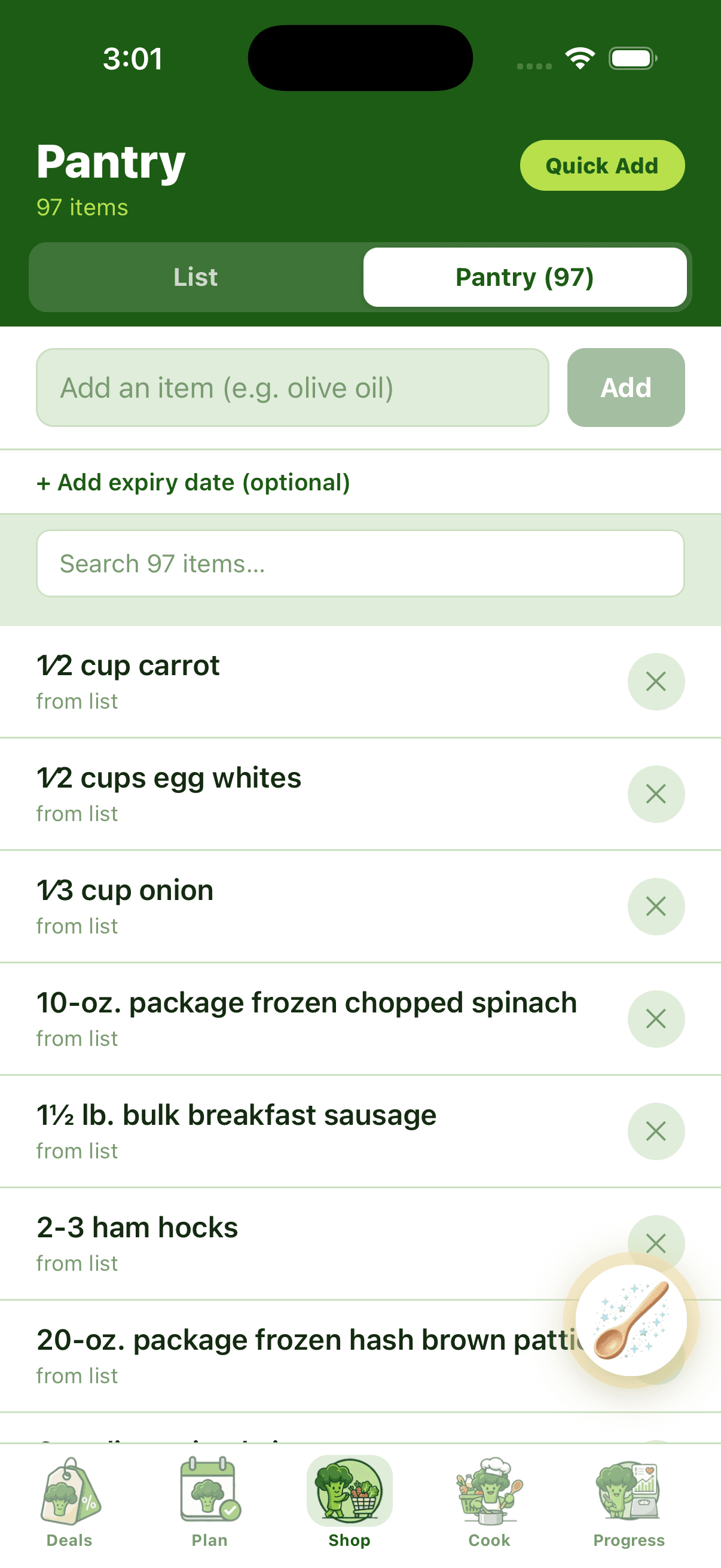
FAQ
Quick answers
Where do the items come from?
From your meal plan, mostly. Tap "Add to Shop" on any recipe and its ingredients populate the list. You can also tap "+ Shoplist" on a deal card to add a deal item directly. The "+ Add" button covers everything else (one-off items, brand-specific picks, household stuff).
How does the deal matching work?
Every item on your list gets matched against this week's deals near your zip code. Exact matches show the discount or unit price. Near-matches (e.g. recipe wants chicken breast, deal is chicken thighs) show as "Chicken on sale · Aldi". Items with no match show without a badge.
Can I share my shopping list?
Not directly today — but the by-aisle mode is built for screenshotting from your phone if you want to hand it off. A native share is on the roadmap.
How does the savings counter work?
Every item you check off credits its discount to your Progress tab's "$X saved this month" counter. Real numbers, not estimates — the discount comes from the matched deal price.
What happens to a recipe after I cook it?
Check off all its ingredients and the group auto-removes after 8 hours. You can also tap the ✕ on the recipe header to remove it immediately. The recipe stays in your plan; just disappears from the shop list.

Stop walking out of the store wondering if you got a good deal.
Every row pre-checked. Best store pre-picked. Savings pre-counted.
Start free trialNo credit card to start · Cancel anytime